
Character Creation in Character House: Parts, Colours and Limits
How the Character House character studio works: the part categories, the colour and gradient tools, the ID card, and the limits players keep running into.

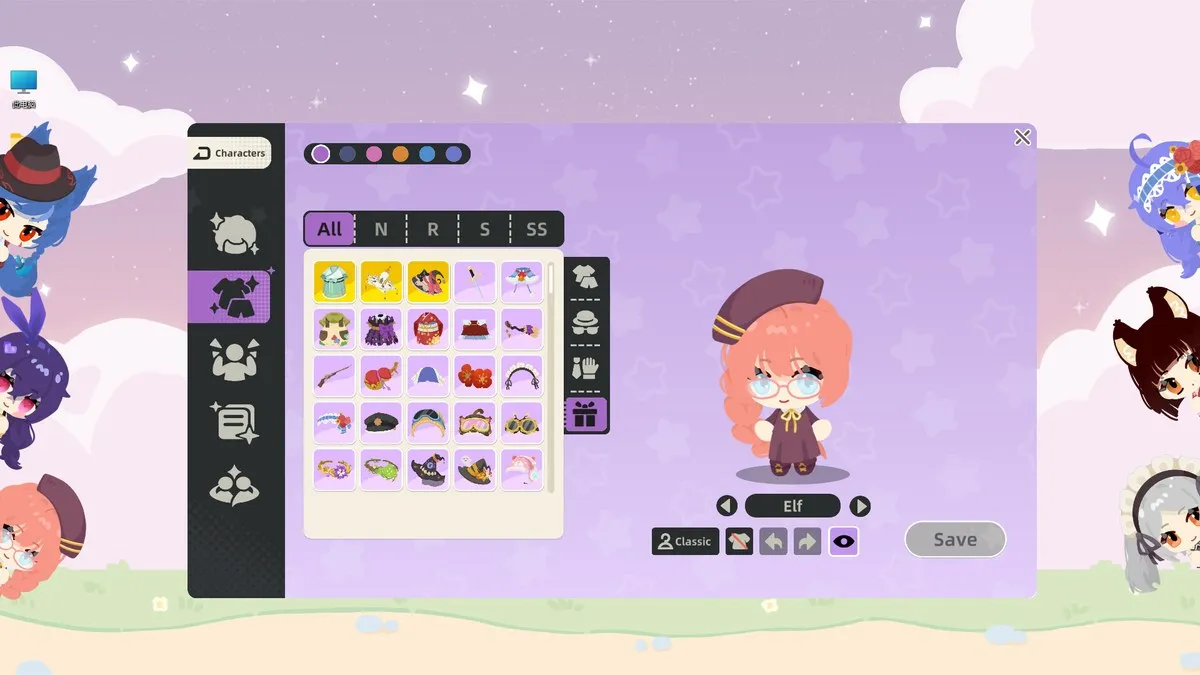
Character creation is the reason most people install the demo. The studio follows one repeating pattern: pick a category down the left side, choose a part from the grid in the middle, then adjust its colour and gradient on the right before saving. You can change skin tone, face shape, eyes, eyelashes, hair, clothing, accessories and poses, and you also fill in an ID card with the character’s name and preferences.
How the studio is laid out
The screenshots on the store page show the same layout every time. A vertical strip of category icons sits on the left, a grid of candidate parts fills the middle, and the character preview with a Save button sits on the right. Coloured dots above the grid are your saved palette.
That layout is the important part. There is no step-by-step wizard and no “next” button, so you are free to jump between hair and eyes as often as you like. Nothing is locked in until you save.
What you can change
The part groups in the demo cover:
- Body and skin tone, including how saturated the tone is.
- Face shape and eyes, with separate controls for the two eyes and for eyelash colour.
- Expressions, unlocked with progress rather than picked from the start.
- Hair, with a colour plus a gradient on top of it.
- Clothing, from casual tops to full outfits.
- Accessories, sorted into slots such as headwear, hats, gloves and gift items.
- Poses and actions, such as standing variations, wiggling, petting and walking.
The store page describes this as mixing and matching hundreds of parts. The developer has not published an exact count, so treat any specific number you see elsewhere with suspicion.
The order that saves the most time
Build the character from the outside in. Skin and face first, because they define the silhouette you will be looking at for hours. Hair second, since hair colour and gradient interact with the face. Clothing next. Accessories last, because they are the easiest to swap later.
Players who start with accessories tend to rebuild the whole character afterwards, and the studio has enough options that this is a real time cost.
Two colour tricks the developer confirmed
The 21 September 2026 update announcement included a list of features the team built but few players had found. Two of them are pure time savers:
- Click the palette icon in the top right of the colour card to save your frequently used colours.
- Type an exact colour value into the field under the colour card instead of hunting for it by eye.
The same announcement confirmed that right-clicking a character and dragging makes it follow your cursor, which is the fastest way to reposition a piece you are previewing.
The ID card is not just decoration
Alongside the visual editor there is a settings card that holds the character’s identity: name, likes, dislikes, dream and similar free-text fields. In the demo the character references that information when it talks.
Fill it in even if you only plan to look at your character. It is the difference between a doll and something that answers you.
Limits players keep hitting
The demo is generous, but the complaints in the store reviews are consistent:
- Rotation is limited. One reviewer asked for full 360-degree rotation on placed items; the demo does not offer it.
- Hairstyles repeat. A player with over twenty hours in the demo called the hairstyles very anime-styled and said curls, braids and locs are missing, with the existing options feeling similar.
- Hair dye is gradient-only. There is a gradient control, but players who want a separate dye layer for the same hairstyle are still waiting.
- No outfit presets. Another reviewer asked for saved outfit presets so a character can switch looks in one click.
There is also a single community report of portraits showing features from another character in the profile screen. One player reported it, no one has confirmed it since, and the developer has not commented on it.
Changing your mind later
Your character is not permanent. You can reopen the studio and edit, and you can build more than one character. The demo’s limit is your desktop space and your patience, not a slot count.
If you want a second character, drag the first one somewhere sensible first, then start the studio again. Two characters placed next to each other can interact, which is covered on the rewards page.
Related reading
- New to the app: beginner guide
- Where to put your character and how to move it: desktop modes
- What the gems and skill points unlock: rewards and expressions
Related Articles
guide
Character House Beginner Guide: What To Do First
A first-session plan for Character House Desktop Companion: install the free demo, build one character, pick a desktop mode and learn the right-click menu.
guide
Character House Desktop Modes: Standing, Typing and Corner
The three Character House desktop behaviours compared, plus the right-click settings that stop your character blocking your work.
guide
Character House Rewards and Expressions: How Progress Works
How the Character House idle loop works: offline rewards, what the gems buy, how levelling grants skill points for expressions, and how two characters interact.